TextureAnySTL
Add texture to a 3D model online, free
You don't need Blender or a CAD course to put a texture on a 3D model. TextureAnySTL does it in your browser: pick the faces, pick a pattern, and export a model with real relief, ready to 3D print.
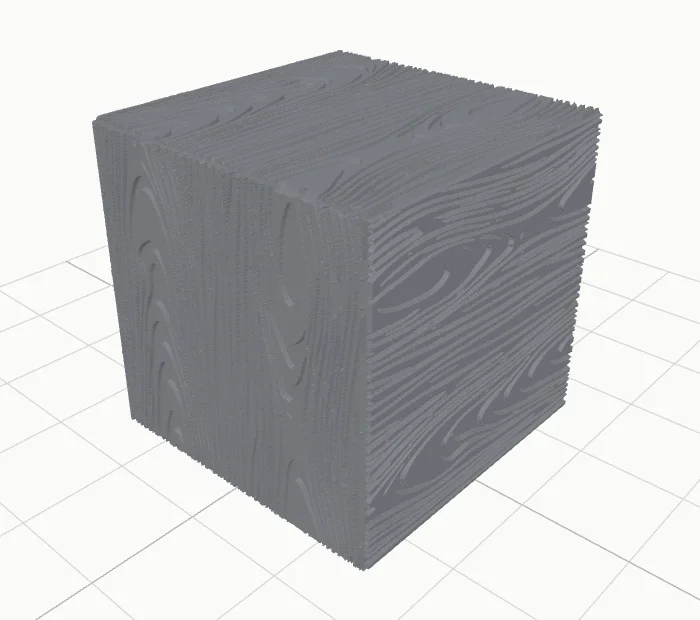
Physical texture, not colour. For 3D printing, a texture has to be real geometry: bumps and grooves in the mesh. Image textures used for rendering and games only paint colour on the surface, and a printer ignores them.
TextureAnySTL builds the relief into the model itself, with 60 ready-made patterns or your own image.
Open TextureAnySTL →Step by step
- Open TextureAnySTL. Open TextureAnySTL in your browser. Nothing to install and no account: it runs in your browser and your file is never uploaded.
- Load your model. Drop in your STL, OBJ or 3MF file, or click to browse.
- Select the faces. Click the face or curved surface to texture. Hold Ctrl (Cmd on Mac) and click to add more. Paint area lets you texture only part of a face.
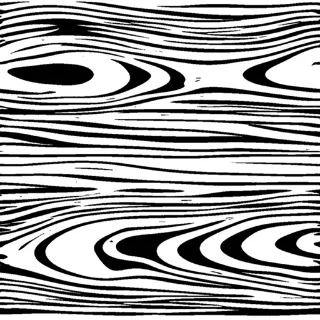
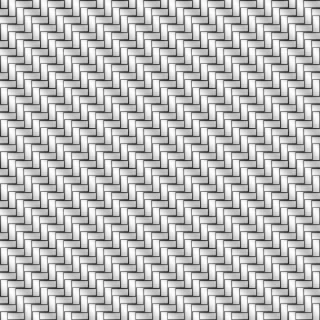
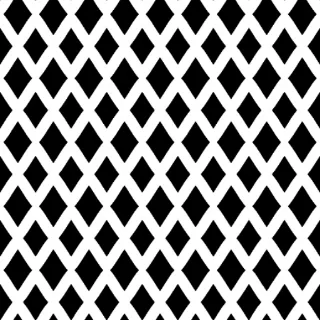
- Choose a texture. Pick one of the built-in patterns (carbon fiber, wood grain, leather, knurling, hexagons…) or upload your own image.
- Set depth and size. Depth 0.2–0.6 mm is typical (negative engraves). Tile size sets how big the pattern is.
- Apply and export. Click Apply texture, check the result in 3D, then Export a watertight STL or 3MF for Bambu Studio, PrusaSlicer, OrcaSlicer, Cura or any other slicer.
TextureAnySTL compared with Blender and CAD
| TextureAnySTL | Blender | CAD (Fusion, Onshape…) | |
|---|---|---|---|
| Install | None, runs in the browser | Desktop app | Desktop app or account |
| How | Click faces, pick a pattern | Subdivide, add a Displace modifier with an image, apply, export | Appearance textures are visual only; real relief has to be modelled |
| Skill needed | None | Medium to high | High for organic patterns |
| Typical time | About a minute | 15–60 minutes | Long |
| Watertight STL for printing | Yes | Usually, after cleanup | Yes |
| Price | Free | Free | Free tiers with limits, or paid |
What you can texture
- Flat faces and curved surfaces: cylinders, fillets, spheres and organic shapes, with Wrap, Project or Sphere mapping.
- Whole faces, several faces at once, or just a painted area of a face.
- Any STL, OBJ or 3MF, from Printables, MakerWorld, Thingiverse or your own CAD.
- Very fine textures for resin printers, with the High, Max and Ultra detail levels.
Common questions
Is it really free? Yes. No account, no watermark, no limit on files. It's supported by optional donations.
Is my model uploaded to a server? No. It runs entirely in your browser; your file never leaves your computer. After the page has loaded it even works offline.
Does it work on a phone? It works best on a computer. Texturing creates millions of triangles, which needs the memory of a desktop or laptop browser.
Can I add colour textures for rendering or games? No. TextureAnySTL makes physical relief for 3D printing. For colour textures (UV maps), use Blender or a similar 3D app.